




 147
147
Introduction
Session Polls is an easy-to-use polling feature that enables organizers and moderators to collect instant audience responses during a session. Session Polls help to boost engagement, provide session leaders with real-time insights, and support more interactive, dynamic sessions.
Best practice examples of using Session Polls:
- Session Organizers who want tools to drive structured participation and gather live insights.
-
Moderators who need quick audience feedback to guide the session's direction.
-
Attendees who benefit from interactive opportunities that make sessions more engaging and participatory.
Table of Contents
- Enable Session Polls
- Starting a Poll within a Session
- Poll Notification
- Responding to a Poll
- Completed Polls
Enable Session Polls
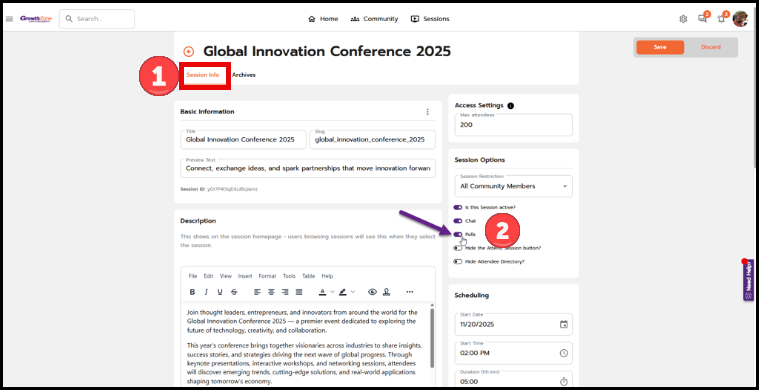
Session-level setting allows customers to enable the “polling” feature.
- Go to Session Info.
- Under Session Options, turn on Polls.
Starting a Poll within a Session
Who can create polls? Organizers and Moderators
Create a Poll
-
While in a session, click on the Activities icon to open the activities panel.
-
Click on Create Poll.
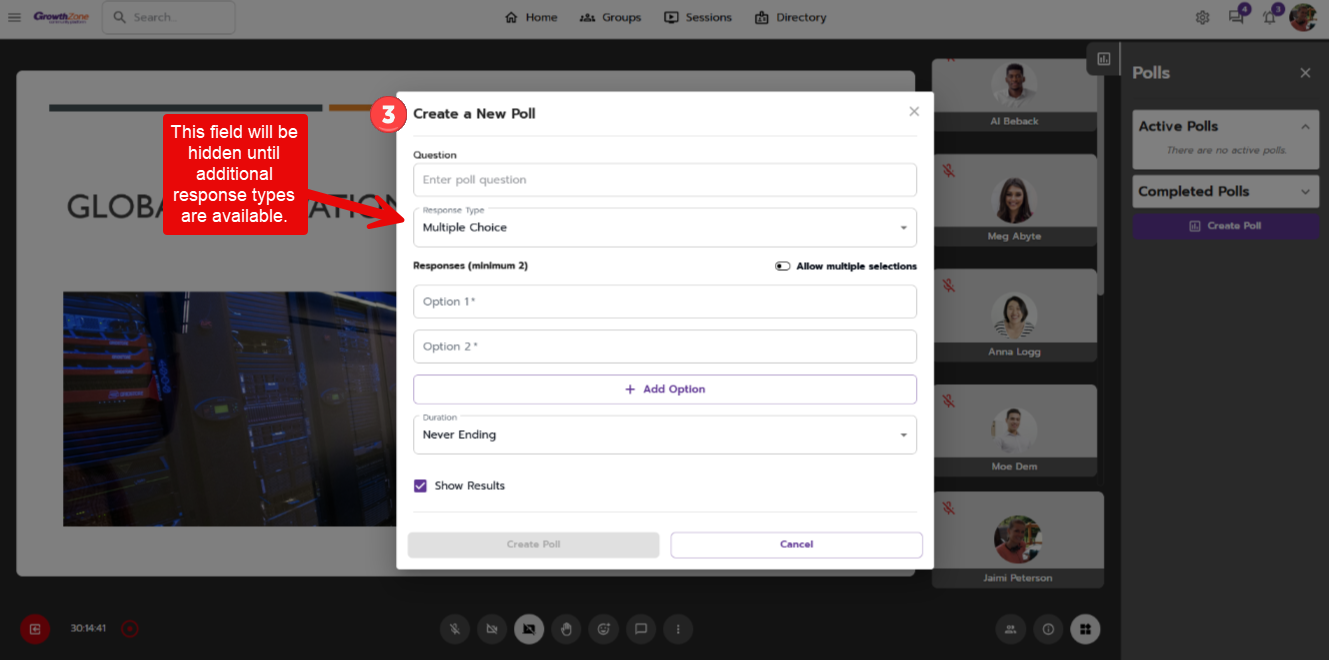

Example of Create a New Poll -
Within the Create a New Poll modal:
-
Question = Enter your poll question
-
Response Type = Multiple Choice is the only option currently.
-
Responses = Add the response options
-
Allow Multiple Selections = enable/disable if users can select more than one response.
-
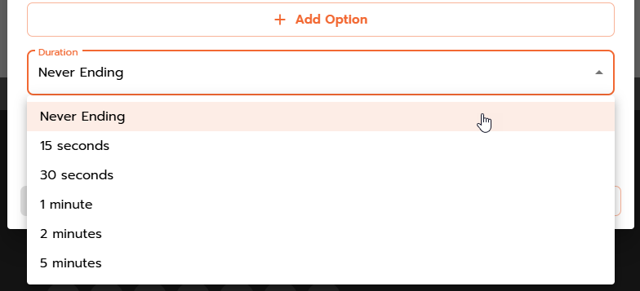
Duration = Choose how long the poll is active for before being automatically closed/ended
-
Organizers and moderators can end a poll at any time.
-
Polls do NOT automatically close when the session ends.
-
-
Show Results = Choose if you’d like the results to be shown to attendees
-
Poll Notification
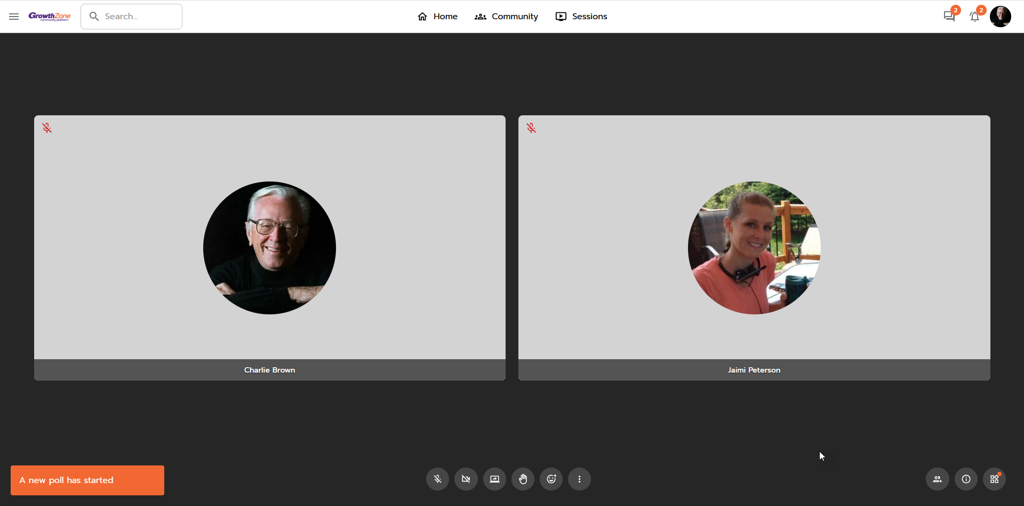
A toast notification will appear when a new poll has been created. When clicked, attendees will be brought to the Polls activity tab/panel.
Responding to a Poll
As an attendee:
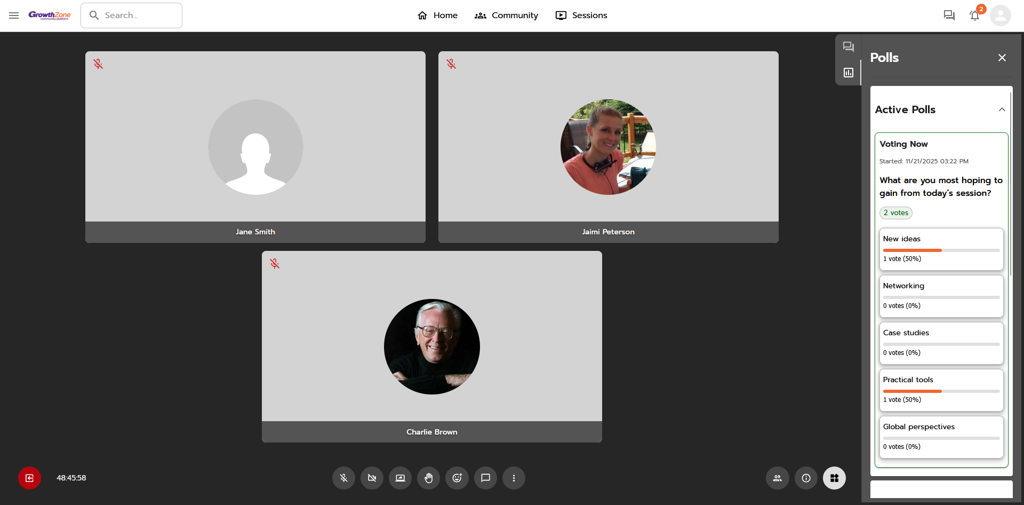
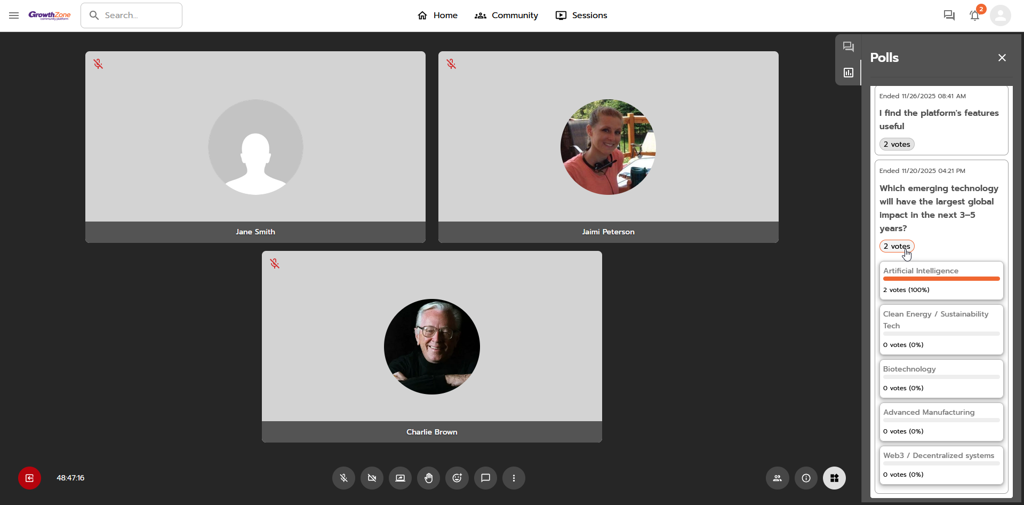
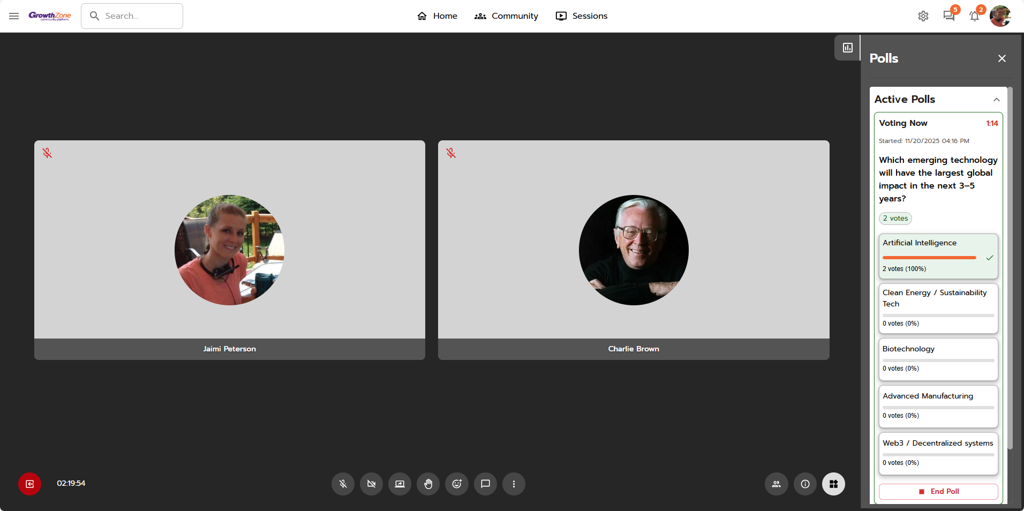
If Show Results is enabled, attendees can see how many votes have been cast and the results for each response type.
- Active Poll:
- Completed Poll (click on the 'votes' chip to view results):
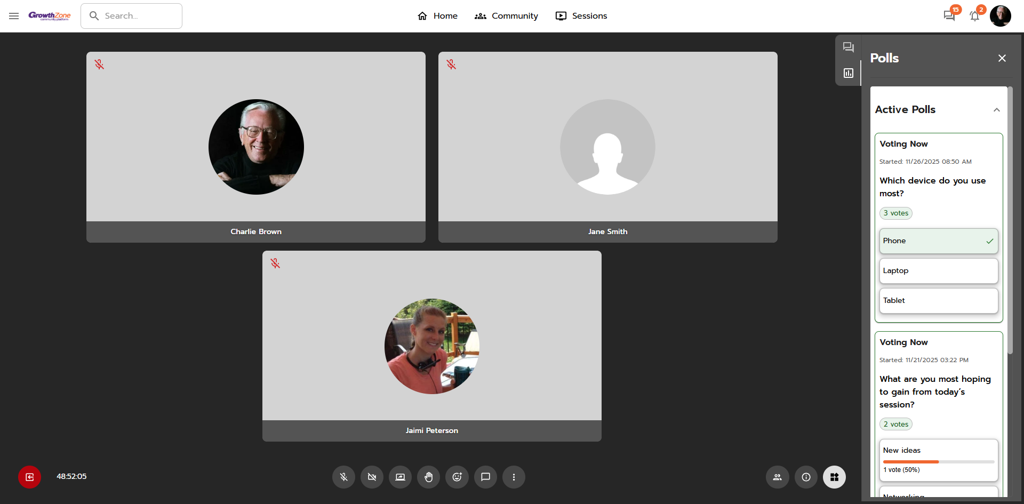
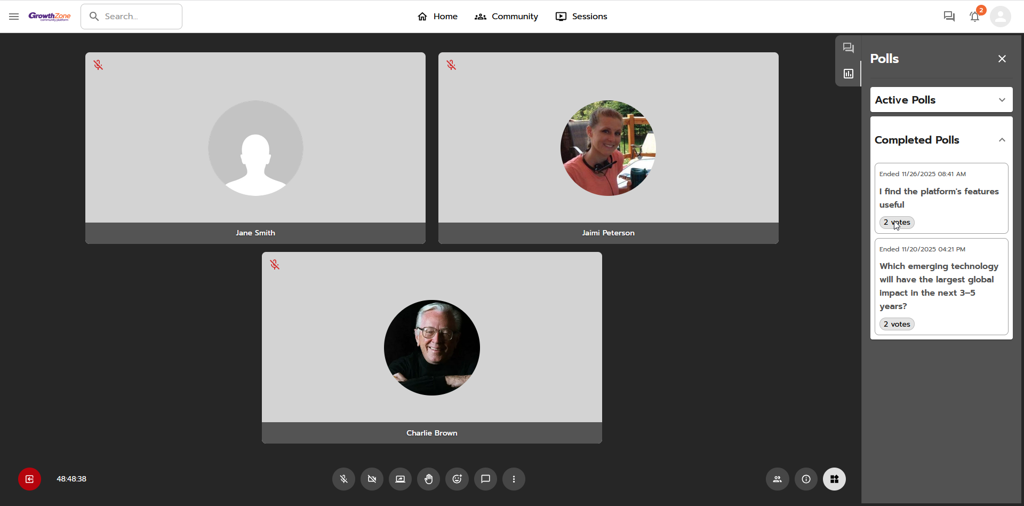
If Show Results is disabled, attendees can only see how many votes have been cast.
- Active Poll:
- Completed Poll (the 'votes' chip is disabled):
As an organizer/moderator:
-
Option to end the poll.
-
There is no option to edit the poll after it has been created.
-
Can see how many votes have been cast and the results per response type, regardless of the Show Results setting.
Completed Polls
- When a poll has ended (been closed), it will move from the Active Polls section to Completed Polls.
- Polls are only accessible while in a session; there is no archive or reporting at this time.
- All polls within a recurring session series will remain available from one instance to the next.

